
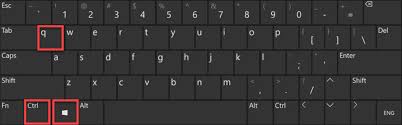
- Shortcut: Press
Ctrl+Windows Logo Key+Q - Search: Click the Start button, type “Quick Assist,” and select it from the results.
- Start Menu: Open the App list, look under ‘Windows Accessories’ (Windows 10) or ‘All Apps’ (Windows 11).
This guide outlines the steps required to access the Quick Assist remote assistance tool to allow me to remotely connect to your Windows device.
Method 1 – Press Ctrl + Windows Key + Q simultaneously :
Method 2 – Windows search function :
1. From the Windows taskbar, select the ‘search’ function.
2. In the text box, type ‘Quick Assist‘ (previously called Quick Assist)
3. Select the ‘Quick Assist‘ app
4. This will open a new window for the Quick Assist app, at this point I will provide you with a 6 digit code to enter, once entered select the ‘Share screen’ button below.
Method 3 – Start menu navigation:
1. Select the Windows start menu icon.
2. Scroll down the list of applications until you find Windows Accessories, this should be in alphabetical order.
3. Expand the ‘Windows Accessories’ folder by clicking on the folder, within the folder should be the ‘Quick Assist’ app, select this to open the app.
4. This will open a new window for the Quick Assist app, at this point the IT Services member will provide you with a 6 digit code to enter, once entered select the ‘Share screen’ button below.