Free ERD Commander Download for Windows XP – (30 day Trial Version): Follow the instructions below to remove the 30 day time-limit using a utility supplied with the trial version.
This gives you a full, free working version of ERD Commander for Windows XP with no time-limit!
- ***NEW*** go here to download the full version of ERD Commander 2005 for XP
- ***NEW*** See also ERD Commander for Windows 10 (MS DaRT 10)
- See also Using ERD Commander for Windows XP boot your computer with the ERD Commander Boot Disk
- See also ERD Commander for Vista and Windows 7
- See also Download ERD Commander for Vista and Windows 7
- See also Create an ERD Commander Bootable USB Flash Drive
- See also Free Download Windows 7 – Create a Windows 7 Installation DVD or USB Flash Drive
- See also Free Download Hirens Boot CD ISO – Create a Bootable USB Flash Drive
The Microsoft Diagnostics and Recovery Toolset (DaRT ) contains a trial version of ERD Commander (also known as ERD 50 – and very similar to Winternals ERD Commander 2003) which “Provides utilities and wizards that will help you to perform system diagnosis and repair procedures, such as recovering data, disabling problematic drivers, and removing hotfixes”
ERD Commander was orginally available as Winternals ERD Commander 2005 – part of the Winternals Admin Pack. But since Winternals was bought by Microsoft in 2006, ERD Commander is no longer an over-the-counter product available to the general public.
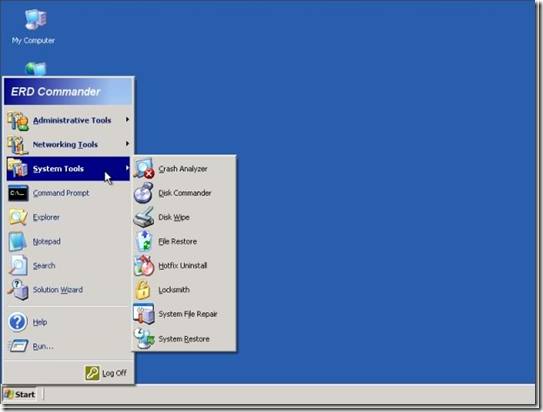
ERD Commander is a very powerful tool. It comes in the form of an ERD Commander ISO file which is burned to a CD which is a diagnostic and recovery boot disk for Windows XP. This is one of the most useful PC diagnostic tools I have ever used.
The ERD Commander boot disc can be used to perform the following tasks through the ERD Commander Boot Media Wizard:
- ERD Registry editor: edit or restore Windows registry
- Run System Restore – to restore the system to a bootable state
- Diagnose and fix problems preventing the system from booting
- ERD Commander administrator password reset with Locksmith (reset or change the password without knowing the administrator’s password) – great if you’re locked out
- Crash Analyzer: analyze crash dumps
- File Restore: Restore deleted files
- ERD Commander fix MBR – Disk Commander: Repair volumes, master boot record, partitions
- Disk Wipe: Erase data from hard disk
- Computer Management: System Information, Autoruns (configure autostarting applications), Event Viewer, Disk Management (format, manage partitions, etc.), Services and Drivers (enable, disable, etc.)
- Explorer: Browse the hard drive,
- Move data from the hard drive onto a USB memory key (plug in the key before booting the system with ERD)
- Solution Wizard : Choose the proper repair tool
- TCP/IP Config: Display and set TCP/IP configuration
- Hotfix Uninstall: uninstall hotfixes
- SFC Scan: System file repair
- Search: Search disk for files
- Standalone System Sweeper: Scan your system for malware, rootkits, and potentially unwanted software
- Download ERD Commander User Guide
Microsoft DaRT (MSDaRT50Eval.msi) is a 30 day evaluation version of ERD Commander, but it also contains a utility which can be used to extend the evaluation period to whatever is desired.
Download:
- The full version of ERD Commander 2005 can be downloaded from here
- the 30-day evaluation version (MSDaRT50Eval.msi) can be downloaded from:
- Microsoft
- Chip.de (Manuelle Installation)
- chip.de – click on “Manuelle Installation” and download the file from the next screen
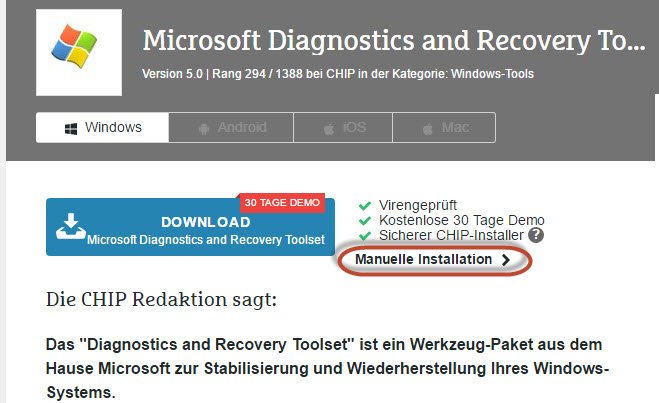
30 day evaluation ERD Commander ISO file
The Microsoft Diagnostics and Recovery Toolset (DaRT ) downloads as a file – MSDaRT50Eval.msi which contains a 30 day trial version of ERD Commander 2007.
When this MSDaRT50Eval.msi is installed it creates an ERD Commander ISO image – erd50.iso – which is located at C:Program FilesMicrosoft Diagnostics and Recovery Toolseterd50.iso
You can use erd50.iso to burn an ERD Commander Windows recovery disk
This Windows recovery cd will work for 30 days, after which the following dialog box will appear when an attempt is made to boot a PC from the CD saying “the usage period for this boot image has expired.”
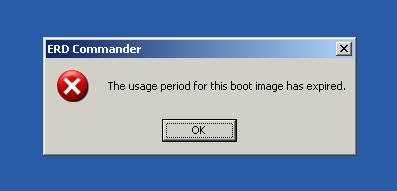
Burning another Wndows boot disk CD will make no difference, as the time limitation is encoded into the erd50.iso file. During the installation process a time limit of 30 days from the date of installation is encoded into the erd50.iso file, so even if you try to create another windows recovery cd from the erd50.iso, the encoded time limit will still commence from the date of original installation. I am not sure if uninstalling MSDaRT50Eval.msi and subsequently reinstalling it will create a new erd50.iso with a 30 day limit that runs from the subsequent installation date, but I suspect that it will still run from the date of first installation.
One way around this would be to note the date on which MSDaRT50Eval.msi was first created, and then if you wished to use it after it had expired, you could set back the date in the bios of the PC you are working on. (This would prevent the use of System Restore – which is date-sensitive)
However, Microsoft included in the installation package a file – Binary.updexp which can be used to extend the 30 day time limit.
“UpdateExp can be used to update the expiration time of a ERD50.iso file. In order to have an iso file with an expiration, you must create the iso by launching erdc with the special /e numDays switch.”
How to extend the evaluation period by 99 years (!)
We can use the above instructions to extend the 30 day evaluation period to however long we choose. For this we need the installation file which contains the erd50.iso file, Universal Extractor software to extract Binary.updexp.exe with which we extend the time limit, and some ISO recording software, to burn the modified erd50.iso to a blank CD.
Here is the recipe:
- Download and install Universal Extractorhttp://legroom.net/software/uniextract#download (Freeware) Alternative Download Source
- Download and save MSDaRT50Eval.msi from here to your PC
- You will need Two Files = erd50.iso and Binary.updexp
- The ERD Commander ISO file is erd50.iso
- For extending the expiry date, you need Binary.updexp.exe
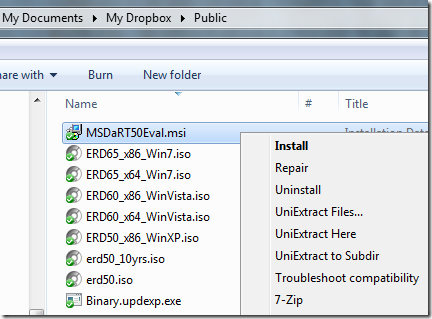
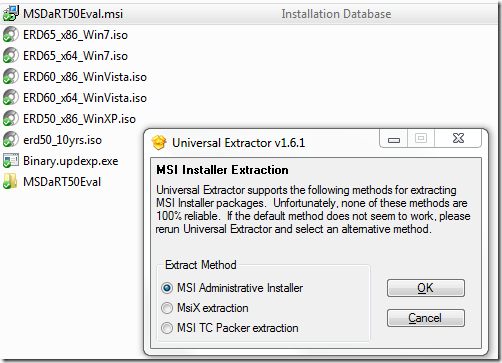
- Extract these files with Universal Extractor = Right click on MSDaRT50Eval.msi –> UniExtract to Subdir


- Select MSI Administrative Installer and press OK.
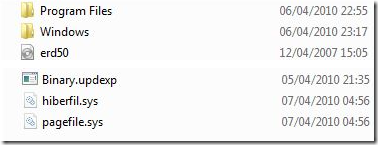
- This will create a subdirectory called MSDaRT50Eval
- Repeat, selecting MsiX extraction and press OK
- erd50.iso and Binary.updexp can now be found in the subdirectory MSDaRT50Eval

Right Click on MSDaRT50Eval.msi (above) and use the first two Extract Methods (below)

- If you cannot find Binary.updexp you can download it from http://dl.dropbox.com/u/677812/Binary.updexp.exe
- You can also obtain the ERD Commander ISO file by installing MSDaRT50Eval.msi on a Windows XP machine:
- double click on MSDaRT50Eval.msi to install it as normal
- Go to C:Program FilesMicrosoft Diagnostics and Recovery Toolset and locate the erd50.iso file
- Move erd50.iso and Binary.updexp into the Root Directory – C:

- Bring up a Command Window – go to Start –> Run , type cmd and hit return
- If using Vista or Windows 7 to do this, you must run the Command Windows as an Administrator to get the changes to stick: type CMD into the search box above the start button, right click on cmd and “Run as administrator” as shown below:

- In the command window type in cd to change to the root directory
- Type UpdateExp.exe C:erd50.iso 36135 and hit Return (see screenshot below)
- If this fails try Binary.Updexp.exe C:erd50.iso 36135
- You should see this:C:>UpdateExp.exe C:erd50.iso 36135
File loaded, searching for expiration in winpeshl.ini
Current time in file is ….
New time will be 36135 day(s) from now.
all done

- This procedure has modified the erd50.iso file, so that its original 30 day evaluation period is extended to 36135 days = 99 years
- Having done this, you need to burn the erd50.iso file to a CD
- Refer to this article on how to burn ISO images to a disc or use http://isorecorder.alexfeinman.com/isorecorder.htm or http://www.imgburn.com/
- You now have a Live CD with which you can boot into non-booting systems
- Note: this should only be used on Windows XP 32 bit systems. I have successfully used it on Vista 32 bit to reset passwords – but it wipes off all the System Restore points. If you can live with that you can still use it to do other things, like move precious files off your hard drive onto a USB memory key….





Thx so much for this article however step 12 was different for me. (I’m using 32bit XP.)
UpdateExp.exe C:\erd50.iso 36135
resulted in:
‘UpdateExp.exe’ is not recognised as an internal or external command, operable program or batch file.
After many frustrating attempts I tried:
Binary.Updexp.exe C:\erd50.iso 36135
which resulted in the file being processed 🙂 🙂
Thanks for your comment – I’ll add a note
thankssssssssss
its really work very gud….
i cant find Binary.Updexp.exe after extracting MSDaRT50Eval.msi
Try this: http://dl.dropbox.com/u/677812/Binary.updexp.exe
hurray!!! it works thanks a lot.
what about when admin passworded then also erd will work or not?
It will completely by-pass the admin password. You can use Locksmith (part of ERD to reset or change an admin password)
Hi sir!
Thanks a lot!
Your article has been of good use for everyone!
keep doing the good work and more power!
P.s.
Could you also include a guide for ERD 2010?
Thanks!
will this utility get around an encrypted win/XP operating system? if so, how is it done?
If the data on the disk is encrypted, this utility will not circumvent the encryption
You guys are awesome, thank you very much.
Hey I already downloaded it but my OS doesnt show up 🙁
Please help, thanks 🙂
If your OS doesn’t show up it may well be that the installation is too badly damaged. You can only use ERD to attach to an installation that is still largely intact.
Not being able to attach to an installation sometimes happens when the drive is failing or has failed.
If you can boot into the system without attaching to the OS and can see files using ERD’s Windows Explorer, you should be able to recover data – see https://calmit.org/recover-files-dead-dying-pc/.
But if you can’t see anything – then it is likely that the drive has failed or is badly damaged. If this is the case you may need to contact a data recovery company. I use http://www.maindisc.co.uk/ for this kind of situation – contact Stephen Warrener – they are very good and a lot cheaper than most.
your article is hard to understand and self-contradicting. I find it extremely hard to understand what is installed by what, or what is contained inside what. please proofread it for structure and grammar. I have summarised the main problems here:
http://forums.majorgeeks.com/showpost.php?p=1647883&postcount=8
as written the article makes no sense, and it’s instructions are impossible to follow. I’m sure I can muddle through it anyway but it’s quite unhelpful.
Hi Warkirby, thanks for pointing out the bits you found confusing. I have tweaked them so that it’s easier to follow.
If you just go ahead and download and install MSDaRT50Eval.msi, you should be able to burn an ERD CD from the erd50.iso that it creates, which will be good for 30 days – long enough, I hope – for you to solve your problem…
WarKirby, that has to be the biggest troll post ever. Learn to read. It was clear enough that my girlfriend (who barely knows anything except point and click) could do this. You just need to follow instructions and stop asking what everything means. You clearly know enough (I read your post) about what things should do, so go make your own if you want structure and grammar.
Thank you Alan for this great post. My girlfriend was able to transfer her data with very little help.
Thanks Gord – glad it works for you and your girlfriend. Maybe WarKirby has a point – the article needs tidying up, but if he had tried it, rather than getting stuck in fault-finding mode, he’d have found that it does in fact work!
Running WinXP SP3 fully patched. Will these instructions create a
rescue disk (equivalent?) for that? Or just for SP2 (then I have to
re-update to SP3)?
Thanks — I’m no geek but these instructions look pretty good, so
thanks for your effort in creating them and care in tweaking them.
These instructions will work for any version of XP
does this work for Windows 7 64 bit?
No. There’s a bit at the end of this post https://calmit.org/erd-commander-2010-vista-windows-7/ which describes what you can do with it. It will work to a certain extent with 32 bit systems and to a lesser extent with 64 bit systems. But for the full functionality you need the Windows 7 64 bit version = ERD 65
Alan
I have a little problem to extract these files
1.- download MSDaRT50Eval.msi OK
2.- download and install uniextract161.exe OK
3.- Right click on MSDaRT50Eval.msi –> UniExtract to Subdir OK
4.- Screen “Scaning file to determine type”
5.- MSI Administrative Installer OK
EXTRACTING FILES FROM: WINDOWS INSTALLER (MSI) PACKAGE
ERROR: Windows Installer can’t opne this installation package.
I’ve downloaded the file twice and I get the same result
by the way this article is excellent, directions are clear water
thank you !!!
Try extracting it with 7Zip instead – download from http://www.7Zip.org. Install and then right click and go to 7Zip–> Extract Files. That should do it.
when i type “Binary.Updexp.exe C:\erd50.iso 36135” in to the command, it says “failed to open the file “C:\erd50.iso”,last error was 0*5″ Please help me
when i type “UpdateExp.exe C:\erd50.iso 36135” in to the command, it says “UpdateExp.exe is not recognised as internal or external command, operable programme or batch file”
By the way you say that the sftware validity will be only 30 days when the sftware is installed (not extracted) . so, if we extract the file, it will not be installed. So, there is no validity for the erd50.iso file. So, what happens if we burn the erd50.iso file directly to the (Compact Disc) after we extract????? HELP ME..
Try it on a different PC.
It won’t work if you’re using a 64 bit system – such as Windows 7 64 bit. I just tried it on a Vista Business 32 bit system and the “Binary.Updexp.exe C:\erd50.iso 36135” command worked fine. the UpdateExp.exe command did not
I haven’t had the chance to test this on that many system configurations. If it doesn’t work on your own PC, try it on a friend’s PC – it should work on a Windows XP system.
Regarding your other question – the internal date of the extracted erd50.iso file is set to 05/14/2007 so if you extract it and burn it directly to CD, you won’t be able to boot, as it will say it has already expired.
During the installation process the internal expiry date is reset to the date you installed it plus 30 days.
However, you could try advancing the date on your PC by 10 years, then installing from MSDaRT50Eval.msi, then burning the CD. You won’t know for 30 days if you have been able to exceed the time limit (I suspect this might work).
The nice thing about the method described in the article above, is that you get the confirmation message – the utility is designed to reset the date, and you can see that it has happened.
sir thanks for the post , the chip.de website from where .msi could be downloaded is not working, however i tried to download ERD50.iso from anoter website , which was successful and i tried use Binary.updateXP.exe and i am getting the following error
C:\>Binary.updexp.exe c:\ERD50.iso 36135
File loaded, searching for expiration in winpeshl.ini
Could not find the pattern, perhaps the iso was not generated using /e
C:\>
please help me as i am serious trouble
Hi there. You say:
The chip.de IS working – I checked several times.
I have improved the instructions in the article above. Try it again.
If you have an emergency try this:
You’ll need a working XP machine – borrow a friend’s if yours is down.
1. Download and Install MSDaRT50Eval.msi from chip.de (It won’t install on a Vista or Windows 7 machine)
2. Go to C:\Program Files\Microsoft Diagnostics and Recovery Toolset\ and locate the erd50.iso file
3. Burn the Iso File to CD
4. This gives you a 30 day working version – use this for now to solve your problem
Later on you can extend the life of the ISO using the Binary.updexp.exe procedure. It sounds like you were almost there
Good luck!
thanks very much that helped
My acer netbook doesnt have a cd drive and it wont let me login to windows, it tries to, but then it logs me right back out. I am downloading this on my dad’s computer and putting the ISO file on a USB drive. I tried to get it to work by booting from the USB on the netbook but it won’t. The USB drive is 16 GB and it has an autorun program. Is there anything I can do to get this program to work without having to burn it to a CD?
I forgot to mention that when I try to boot from the USB drive it says:
Check cable connection..!
PXE-MOF: Exiting Intel PXE ROM
Hi Jay
– try this https://calmit.org/erd-commander-bootable-usb-flash-drive/
Jay, if you want to run erd from a usb drive you could try the grub4dos approach.
This method will allow you to boot many different iso’s directly from your usb drive.
Ok, download the grub4dos installer from below and extract the zip file
http://download.gna.org/grubutil/grubinst-1.1-bin-w32-2008-01-01.zip
Also download firadisk
Insert your flash drive
Run grubinst_gui.exe
Click on disk and press refresh
Choose the usb flash drive you want to install grub to from the drop down menu
(be careful that you choose the correct one!)
Click refresh on part list and choose whole disk mbr.
Click install.
Grub has now been written to the flash drive mbr.
Now copy grldr and menu.lst from dos4grub over to the flash drive.
Your flash drive will now be ready to add files to boot from.
Create a folder on your flash drive called ISO
Copy erd50.iso and firadisk.img to the ISO folder.
Open the menu.lst file and remove any text that may be inside it and add the following text
title ERD Commander 5.00
find –set-root /ISO/erd50.iso
map –mem /ISO/firadisk.img (fd0)
map –mem /ISO/erd50.iso (0xFF)
map –hook
chainloader (0xFF)
That’s it, all you need now is to set your pc to boot from usb drive either by entering the bios setup or by pressing a boot order key (usually F12)
Great detailed reply, but I couldn’t get it to work properly with the above method
Try this https://calmit.org/erd-commander-bootable-usb-flash-drive/. This method of creating a Bootable ERD Commander USB Flash Drive works really well.
Follow your steps, I could do it ! Alan, Thanks a lot!
sweet tool… thanks so much!!
Easy way to remove the time trial.
Extract the erd iso or simply open with an iso reading tool such as MagicIso.
Locate the file winpeshl.ini in the system32 directory.
Set EOT To EOT=fffffffffffffff and save. Recompile image.
For anyone who can’t see their OS using this tool, it’s probably due to a missing sata controller driver. All you need to do is find out which sata controller your computer has, download the driver and put it on a floppy.
Whilst booting erd you will get a chance to load the driver by pressing F6 when indicated. If you haven’t got a floopy drive you will need to add the driver directly to erd. Just copy the driver to the system32\driver directory and edit txtsetup.sif. A quick google search will explain how to do this.
Excellent! Thanks for the guideline
I try to boot it from USB drive. However, when the select the usb of 1st boot device and restart PC, an error has occured which is “remove disk or media drive. Press any key to restart”.
I think this error caused by a problem with creating bootable USB drive. can you help me to create USB bootable version of ERD Commander.
Try this https://calmit.org/boot-erd-commander-from-a-usb-flash-drive/
What is this exactly for and how to get for Windows 7 x64, please?
Thanks
– Donald
This whole article explains what this is for! It shows you how to create a recovery boot disk for Windows XP
There are versions of ERD Commander for Windows Vista and Windows 7 -both 32 & 64 bit
– but are not easily obtainable. If you become a TechNet Standard subscriber you can download them
Alan you just saved the day for me with this. As I’m sure is the case for many people. Much appreciated 🙂 (P.S. For updating the erd50.iso file expiry date I had problems at first in Vista 32 bit version. But running cmd as administrator solved the problem).
Hi Peter, glad it worked. I’ve added a bit to the article to make it clearer.
Hi Alan,
Thanks for great post! This worked great with a CD, but every time I use a bootable USB, it blue screens. I follwed the instructions in your other post about using Yumi. I get past the ERD loading screen and then it blue screens after the Windows logo screen. Any ideas?
I would suggest you try a different USB Flash Drive.
I have used YUMI with ERD Commander as described in
Create an ERD Commander Bootable USB Flash Drive/ but it has blue screened with some USB Drives. I have had good results with these Kingston Drives 4gb, 8gb and 16gb – the swivelling Data Traveller type
I have also found that some computers will blue-screen when booted with ERD Commander from a USB flash drive, while others are fine. It always seems OK booting from a CD, but booting from a USB drive appears to be more hit and miss
Hi
Great tool but it doesnt see the SATA drives, or find a version of XP to repair? Please Help
Used MSDaRT50Eval.msi (without installing), Universal Extractor and extended expiration date as above said. Then used ImgBrn to make CD.
Upon booting from it I get a window from FACTORY.EXE with the message “Failed to install network adapter — Check WINBOM”
How to go about this error?
Whould it make a difference if I first install the msi?
Thx